


Default Blog
Default Blog
XP ICON & ICON-X | XP Deus II Performance at a Lower Price
XP ICON & ICON-X: Big Performance, Serious Modularity, and a Price That Could Shake Up the Market
The new XP ICON and XP ICON-X metal detectors are now available for pre-order at Big Boys Hobbies Metal Detectors. XP has estimated that U.S. dealer deliveries may begin in the first part of July, but as always with new detector releases, that timing is an estimate and not a guaranteed ship date.
The XP ICON and XP ICON-X are new multi-frequency metal detectors from XP designed for lightweight detecting, wireless performance, and serious upgrade potential.
If you have been watching the XP lineup, this one is worth paying attention to. The XP ICON series brings a lot of the technology, performance, and wireless design people love about the XP Deus II, but at a much lower entry price. For a lot of hunters, this may be one of the best values XP has released in years.
Click here to pre-order the XP ICON or ICON-X from Big Boys Hobbies.

Why the XP ICON Has Our Attention
The biggest thing that stands out to us about the XP ICON is the value. You are getting a lightweight, wireless, waterproof, FMF multi-frequency detector from XP at a price point that makes a lot of sense for both newer detectorists and experienced hunters who want a second machine.
No, we are not saying it completely replaces the XP Deus II. The Deus II is still the top dog in the XP lineup for maximum control, advanced settings, and premium performance. But the ICON and ICON-X appear to bring a surprising amount of XP performance to a much lower price point, and that is what makes this detector so interesting.
For the money, this could be one of the strongest performance-per-dollar machines in the XP lineup.
XP ICON Modularity: This Is Where Things Get Really Interesting
One of the biggest advantages of buying into XP is the ecosystem. XP has always been known for lightweight wireless detectors, swappable coils, wireless headphones, and accessories that work together instead of feeling like separate pieces of equipment.
The XP ICON follows that same idea. It is compatible with key XP technologies and accessories, including:
- XP FMF search coils
- XP HF2 high-frequency coils
- XP MI-6 wireless pinpointer
- XP wireless headphones
- XP Go Terrain app
- USB-C software updates
That means the ICON is not just a “buy it, and you’re done” detector. It can grow with you. You can start with the detector package that fits your budget, then build it into a more specialized setup over time.
Compatible With XP Deus II Coils and Accessories
This is a big deal. The XP ICON being compatible with XP Deus II FMF coils makes it much more flexible than a typical entry or mid-level detector. If you already own a Deus II, or if you plan to upgrade into more XP equipment later, the ICON gives you a path to share coils and accessories across the XP platform.
That is where the long-term value comes in. You are not buying into a closed-off detector with limited upgrade potential. You are buying into the XP wireless ecosystem.
For customers who already own an XP Deus II, the ICON could make a lot of sense as a backup machine, travel detector, loaner machine, or lightweight setup for quick hunts.
Pair the XP ICON With the HF2 Coil, and It Could Be a Game-Changer
One setup we are especially excited about is the XP ICON paired with the optional XP Deus II 9.5" x 5" HF2 Elliptical Coil.
That high-frequency elliptical coil is built for separation, sensitivity, and working in iron or trashy ground. If you hunt old home sites, iron patches, cellar holes, pounded parks, or areas where good targets are hiding close to junk, this is the kind of coil that can really wake a detector up.
With the ICON’s lightweight wireless design and XP’s FMF technology, adding the HF2 coil could turn this into a very serious unmasking setup. That is why we think this detector has a chance to surprise a lot of people once it gets into the hands of real hunters.
Performance Close to Deus II for a Lot Less Money?
The XP Deus II is still XP’s flagship detector, and it gives you more advanced controls and more total capability. But the ICON and ICON-X look like they may deliver a lot of that XP performance feel at a much lower price.
That matters because not every customer wants to spend flagship money right out of the gate. Some people want a lightweight, waterproof, multi-frequency detector that performs well, is simple enough to learn, and can still be upgraded with better coils and accessories later.
That is exactly why the XP ICON has our attention.
ICON vs. ICON-X: Which One Should You Choose?
The standard XP ICON is the simpler version and should be a great fit for hunters who want XP performance without getting too deep into advanced settings.
The XP ICON-X gives you more control, more audio options, more reactivity options, and more custom program flexibility. If you are an experienced detectorist, or you like fine-tuning your machine for different sites, the ICON-X is probably the one you will want to look at first.
Either way, both models are designed around XP’s lightweight wireless platform and FMF multi-frequency technology.
XP ICON Manual Is Now Available Online
XP has released the official ICON manual online, which gives us a better look at the detector’s settings, options, pairing features, factory programs, and accessory support.
You can view the official XP ICON manual here:
View the Official XP ICON Manual
The manual confirms several important features, including FMF multi-frequency operation, wireless headphone pairing, MI-6 pinpointer pairing, coil selection and pairing, USB-C updates, and XP Go Terrain app support.
Why Pre-Order the XP ICON From Big Boys Hobbies?
At Big Boys Hobbies, you are not dealing with a faceless drop-ship website. We are a real brick-and-mortar metal detecting dealer in Norman, Oklahoma, and when you call or email us, you are talking directly with the owner.
Here is why customers choose Big Boys Hobbies:
- Real metal detecting experience
- Authorized XP dealer support
- Free shipping
- No sales tax outside Oklahoma
- Personal help before and after the sale
- Pre-orders are filled in the order received
Pre-order note: The XP ICON and ICON-X are currently on pre-order. XP has estimated U.S. dealer deliveries may begin in the first part of July, but that is not a guaranteed ship date. You will not be charged until your detector is ready to ship, and we will contact you before processing payment to confirm that you still want the unit.
Final Thoughts: The XP ICON Could Be One of the Best Values of the Year
The XP ICON and ICON-X are exciting because they bring together three things detectorists care about: performance, price, and upgrade potential.
You get XP’s lightweight wireless design, FMF multi-frequency technology, compatibility with important XP accessories, and the ability to build the detector into a more specialized setup over time. Pair it with the optional HF2 coil, and this could become one of the most interesting setups in the XP lineup.
If you have been wanting XP performance but did not want to jump all the way into Deus II pricing, the ICON deserves a very serious look.
Pre-order the XP ICON or ICON-X here.
Questions before you order? Call or text Bart at 405-206-9010 or email Bart@BigBoysHobbies.net. We will be glad to help you figure out which XP setup makes the most sense for the way you hunt.
XP ICON Frequently Asked Questions
When will the XP ICON be available in the USA?
XP has estimated that U.S. dealer deliveries may begin in the first part of July, but that is not a guaranteed ship date. Pre-orders will be filled in the order received.
Will I be charged when I pre-order the XP ICON?
No. You will not be charged until your detector is ready to ship. Big Boys Hobbies will contact you before processing payment to confirm that you still want the unit.
Is the XP ICON compatible with XP Deus II coils?
Yes. The XP ICON range is compatible with XP FMF coils, including coils used in the Deus II ecosystem.
Can the XP ICON use the XP HF2 coil?
Yes. The XP ICON is compatible with HF2 coils, including the optional XP Deus II 9.5" x 5" HF2 Elliptical Coil. This could be an excellent upgrade for trashy sites, iron, and small target sensitivity.
Is the XP ICON waterproof?
Yes. The XP ICON range is designed as a waterproof detector, making it suitable for land, beach, and shallow water hunting.
Is the XP ICON better than the XP Deus II?
The XP Deus II is still XP’s flagship detector with more advanced controls and overall capability. The XP ICON is better viewed as a high-value XP detector that delivers strong performance at a lower price with excellent upgrade potential.
Who should buy the XP ICON-X?
The XP ICON-X is the better choice for detectorists who want more control, more audio options, more reactivity settings, and more customization compared to the standard ICON.
XP Deus II FE Cheat Code Settings for the 9.5" HF2 Coil
XP Deus II “FE Cheat Code” Settings for the 9.5" HF2 Coil
If you run an XP Deus II with the 9.5" x 5" HF2 elliptical high-frequency coil, there is a simple setup being talked about by XP users that many are calling the “FE Cheat Code.” This setup is designed for hunters looking for better performance in iron, trashy sites, and difficult ground where target separation matters. Credit XP expert Merrill.
The idea behind this setup is simple: use the Deus II’s fast processing, high-frequency capability, and iron-handling tools to help pull good targets out of areas where other detectors may struggle.
XP Deus II FE Cheat Code Settings
- Program: Fast Program
- Max Frequency: 89 kHz
- Tones: Full Tones
- Multi-Processing: Morph 2
- Ground Balance: Do a Ground Grab
Why This XP Deus II Setup Works So Well
The XP Deus II is already known for being one of the best metal detectors for iron, trash, and target separation. But when you pair it with the XP Deus II 9.5" x 5" HF2 elliptical search coil, the machine becomes even more specialized for picking through tough sites.
The smaller elliptical design helps you work between trash, nails, and tight targets, while the high-frequency capability gives the detector excellent sensitivity to smaller and lower-conductive targets. That makes this coil a strong choice for relic hunting, old home sites, iron patches, gold jewelry, small coins, and difficult ground conditions.
Fast Program: Built for Target Separation
The Fast Program is a great starting point when hunting in iron or trash because it is designed for quick response and recovery speed. In places where multiple targets are close together, a slower program can smear or blend signals together. The Fast Program helps the Deus II respond quickly, so you have a better chance of hearing a good target hiding next to junk.
This is one of the main reasons the “FE Cheat Code” setup makes sense with the HF2 coil. The coil is already built for precision, and the Fast Program helps take advantage of that.
89 kHz Max Frequency: Extreme Sensitivity With the HF2 Coil
Running the XP Deus II up to 89 kHz with the HF2 coil gives the detector a serious advantage on small targets. Higher frequencies are especially useful when you are looking for tiny conductors, thin coins, small relics, small gold, and targets that may not hit as hard at lower frequencies.
This is where the XP 9.5" HF2 coil really shines. If you already own a Deus II and want to make it better in trashy or iron-infested sites, this coil is one of the best upgrades you can make.
Full Tones: Hear More Target Information
Using Full Tones gives you more audio information about what is under the coil. Instead of relying on only a few tone breaks, Full Tones lets the Deus II communicate subtle differences in target response.
For experienced Deus II users, Full Tones can make a big difference. You can start hearing the “shape” of the target better, especially when good targets are mixed in with iron or other trash. This is not always the easiest audio mode for beginners, but once you get used to it, it can be extremely powerful.
Morph 2 Multi-Processing: A Key Part of the Cheat Code
The video setup also uses Multi-Processing: Morph 2. This setting can help fine-tune how the Deus II handles signal processing and target audio. When paired with the Fast Program, Full Tones, and the HF2 coil, Morph 2 can help make the detector feel more responsive and informative in tough hunting conditions.
In simple terms, the goal is to make good targets stand out better without losing the speed and separation that makes the Deus II so popular.
Don’t Skip the Ground Grab
One of the most important parts of this setup is also one of the easiest to overlook: do a Ground Grab.
Ground balancing helps the detector adjust to the soil conditions where you are hunting. This matters even more when running high frequencies, because mineralized ground can affect stability and performance. Before you start judging targets, take a moment to ground balance the detector properly.
Best Coil for This XP Deus II Cheat Code Setup
This setup is built around the XP Deus II Elliptical HF2 Search Coil — 9.5" x 5". This coil is a favorite for hunters who want better separation, better control in iron, and better sensitivity to smaller targets.
If you already own an XP Deus II, adding the HF2 coil can completely change how the machine performs in difficult sites. It is especially useful in:
- Old home sites with nails and iron
- Trashy parks
- Relic hunting sites
- Gold jewelry hunting
- Small coin hunting
- Areas where larger coils struggle with target separation
Want the Best XP Deus II Setup Already Built?
If you do not already own the Deus II or you want what we consider one of the best current XP Deus II packages, take a look at our XP Deus II Gold HF2 with WSA ST Stereo Headphones setup.
This package gives you the Deus II platform with the 9.5" HF2 coil already included, along with the new WSA ST stereo headphones. For hunters who want a serious Deus II setup for iron, trash, gold, relics, and small targets, this is one of the strongest combinations XP offers right now.
Need Help Choosing the Right XP Deus II Setup?
Before you buy an XP Deus II coil or detector package, talk with us first.
At Big Boys Hobbies, you are not dealing with a call center or a drop-ship warehouse. You can call, text, or email and speak directly with Bart.
Call/Text: 405-206-9010
Email: Bart@BigBoysHobbies.net
Final Thoughts on the XP Deus II FE Cheat Code
The XP Deus II “FE Cheat Code” setup is a simple but powerful way to get more out of the Deus II when using the 9.5" HF2 coil. By combining the Fast Program, 89 kHz max frequency, Full Tones, Morph 2, and a proper Ground Grab, you can create a setup that is fast, sharp, and highly responsive in difficult detecting conditions.
For hunters working iron patches, trashy parks, old yards, relic sites, or small-target areas, this is a setup worth trying. The XP 9.5" HF2 coil is one of the best upgrades for the Deus II, and the XP Deus II Gold HF2 package is one of the best complete Deus II setups available. Discount code on the page as an added bonus or contact us directly for a better deal!
Frequently Asked Questions
What is the XP Deus II FE Cheat Code?
The “FE Cheat Code” is a Deus II setup shared in an XP video that uses the Fast Program, 89 kHz max frequency, Full Tones, Morph 2 multi-processing, and a Ground Grab. It is designed to help the Deus II perform well in iron, trash, and difficult hunting conditions.
What coil is best for the XP Deus II FE Cheat Code?
The setup is especially well-suited for the XP Deus II 9.5" x 5" HF2 elliptical coil. This coil offers excellent target separation and high-frequency sensitivity, making it ideal for iron, trash, small targets, and difficult sites.
Is the XP Deus II 9.5" HF2 coil good in iron?
Yes. The smaller elliptical design helps separate good targets from nearby iron and trash. When paired with a fast Deus II program, it can be one of the best coil choices for old home sites, relic hunting, and nail-infested areas.
Should beginners use Full Tones on the XP Deus II?
Full Tones can provide a lot of target information, but it may take some time to learn. Beginners can still try it, but they should expect a learning curve. Once you understand the audio, Full Tones can be very powerful.
Where can I buy the XP Deus II HF2 coil?
You can buy the XP Deus II 9.5" HF2 elliptical coil with a discount code on the page from Big Boys Hobbies Metal Detectors with free shipping and personal support.
XP ICON & ICON-X Metal Detectors: New FMF Wireless Detectors from XP
XP ICON & ICON-X Metal Detectors: New FMF Wireless Detectors from XP
XP Metal Detectors has introduced the new XP ICON and XP ICON-X metal detectors, giving detectorists a lightweight, wireless, waterproof, multi-frequency platform built around XP’s proven FMF® Fast Multi Frequency technology.
The new XP ICON range is designed for detectorists who want strong performance, simple operation, and compatibility with the XP wireless ecosystem. Whether you hunt coins, relics, jewelry, beaches, parks, forests, or mineralized ground, the ICON and ICON-X bring a lot of XP performance into a very lightweight and easy-to-use setup.
If you are interested in ordering or learning more, you can view the actual detector page here: XP ICON and ICON-X Metal Detector at Big Boys Hobbies.
XP ICON Availability Update
Based on the information released so far, XP plans availability for end users in Europe first, with the rest of the world to follow. U.S. pricing, final package options, and dealer availability may vary. For the most current information, visit our XP ICON and ICON-X product page or contact Bart directly.
Watch the XP ICON and ICON-X Video
This XP video shows more information about the new ICON platform, available packages, accessories, and the key differences between the XP ICON and XP ICON-X.
What Is the XP ICON?
The XP ICON metal detector is a new lightweight, fully wireless, multi-frequency detector made in France by XP Metal Detectors. It is built for detectorists who want powerful performance without overcomplicated controls.
The ICON series uses FMF® Fast Multi Frequency technology, allowing the detector to operate with simultaneous multi-frequency detection. That gives users better versatility across different ground conditions, target types, and hunting environments.
The ICON is aimed at users who want a simple, fast, lightweight XP detector. The ICON-X is the more advanced version, offering additional control, more programs, more reactivity settings, finer discrimination adjustment, and an extra 28 kHz mono frequency.
XP ICON vs ICON-X: What Is the Difference?
Because both models may be sold from the same product page, it is important to understand the difference between the XP ICON and the XP ICON-X before choosing your setup.
| Feature | XP ICON | XP ICON-X |
|---|---|---|
| Best For | Simple, easy, lightweight XP performance | More control, precision, and adjustability |
| Mono Frequencies | 4 kHz and 14 kHz | 4 kHz, 14 kHz, and 28 kHz |
| Audio Settings | 3 audio settings | 6 audio settings |
| Reactivity | 5 levels: 1 to 5 | 7 levels: 0 to 6 |
| Discrimination Resolution | 1-point resolution | 0.5-point resolution |
| Programs | 3 factory programs + 3 custom slots | 6 factory programs + 6 custom slots |
Quick recommendation: Choose the XP ICON if you want the easiest and simplest setup. Choose the XP ICON-X if you want more control, more adjustability, and the better long-term choice for experienced hunters.
Key Features of the XP ICON Series
- FMF® Fast Multi Frequency Technology for versatile detection across different ground conditions
- Fully wireless design with wireless remote, coil, and headphones
- Waterproof to 5 meters / approximately 16 feet
- Ultra lightweight build for long hunts and comfortable use
- Compatible with Deus II FMF coils
- Advanced XP audio with PWM, Square audio, and stereo audio morphing
- Multiple tone options, including Pitch, 2 tones, 3 tones, 5 tones, and Full Tones
- XP Go Terrain App support for recording finds and tracking routes
- Fast startup — power on, choose your program, and start detecting
- Upgradeable XP ecosystem with coils, headphones, pinpointer, and accessories
FMF Fast Multi Frequency Technology
One of the biggest features of the XP ICON range is FMF® Fast Multi Frequency technology. Instead of relying on only one frequency at a time, the ICON platform is designed to use simultaneous multi-frequency detection for better performance across different sites.
This matters because coin hunting, beach hunting, relic hunting, and jewelry hunting do not all require the same type of response. FMF helps the detector handle a wider range of targets and ground conditions, including wet sand, mineralized soil, and mixed hunting environments.
For users who want XP multi-frequency performance in a lighter and more simplified package, the XP ICON and ICON-X are going to be very interesting machines to watch.
Fully Wireless XP Design
XP has always been known for lightweight wireless detector technology, and the ICON series continues that approach. The remote, coil, and compatible headphones communicate wirelessly using XP’s digital protocol, giving the user freedom of movement and a clean, modern detecting setup.
This is not just about convenience. A properly balanced, lightweight, wireless detector can make a major difference during long hunts. Less weight and less cable clutter means less fatigue and more time swinging.
Ultra Lightweight for Long Hunts
The XP ICON and ICON-X are built for comfort. XP lists the ICON at approximately 843g / 1.858 lbs fully equipped with the remote, while the ICON-X is approximately 830g / 1.829 lbs fully equipped with the remote.
That lightweight design makes the ICON range a strong choice for long hunts in parks, fields, beaches, woods, and old home sites where comfort matters.
Waterproof to 5 Meters
The XP ICON series is rated IP68 waterproof and waterproof to 5 meters / approximately 16 feet. That makes it a good option for wet sand, rain, mud, creeks, shallow water, and beach hunting.
For underwater use, XP’s optional bone conduction headset is required. That is important because standard wireless headphones do not transmit properly underwater.
Advanced XP Audio Options
Audio is a major part of the XP detecting experience, and the ICON range includes several useful audio options. The ICON series supports PWM and Square audio, along with stereo audio morphing.
Available tone options include:
- Pitch
- 2 tones
- 3 tones
- 5 tones
- Full Tones
Good audio helps detectorists better understand what is under the coil. In trashy parks, iron-loaded sites, and older locations, better audio response can help users make smarter dig decisions.
XP Go Terrain App Compatibility
The ICON range is also compatible with the XP Go Terrain App. This allows users to record finds, track detecting routes, and use smartphone GPS features while hunting.
For detectorists who like to document productive areas, revisit locations, or keep better records of their hunts, app support is a useful addition.
XP ICON and ICON-X Specifications
| Specification | Details |
|---|---|
| Detection Technology | Simultaneous FMF® Multi-Frequency with automatic and manual frequency shift |
| Waterproof Rating | IP68, waterproof to 5 m / approximately 16 ft |
| Wireless Compatibility | Compatible with Deus II FMF ecosystem, ST headphones, pinpointer, and Go Terrain App |
| Tones | Pitch, 2 tones, 3 tones, 5 tones, and Full Tones |
| Audio Types | PWM and Square with stereo audio morphing |
| Mono Frequencies | ICON: 4 and 14 kHz | ICON-X: 4, 14, and 28 kHz |
| Sensitivity | 25 levels |
| Ground Balance | Grab, Manual, or Auto Tracking |
| Reactivity | ICON: 5 levels, 1 to 5 | ICON-X: 7 levels, 0 to 6 |
| Battery Life | Remote, headphones, and coil approximately 11 hours; charging approximately 3 hours |
| Display | Sunlight-readable LCD with adjustable low-consumption backlight |
| Stem Size | Folded: 58 cm | Extended: 130 cm |
| Multi-Notch | 28 segments |
Who Should Buy the XP ICON?
The XP ICON is a good fit for detectorists who want a simple, lightweight, waterproof XP detector with FMF multi-frequency performance. It is designed to be easy to operate while still giving users strong performance across a variety of hunting conditions.
The ICON is a smart choice for beginners, casual users, and detectorists who want XP technology without needing the extra settings of the ICON-X.
Who Should Buy the XP ICON-X?
The XP ICON-X is the better choice for users who want more control. It adds more frequency options, more audio settings, more reactivity levels, finer discrimination resolution, and more program slots.
For experienced detectorists, the ICON-X will likely be the preferred model because it gives you more room to fine-tune the machine for different sites.
Bart’s Take: The regular XP ICON looks like a great option for someone wanting simple, lightweight XP performance. The XP ICON-X is the model I would watch closely if you want the most adjustability, especially with the added 28 kHz mono frequency, more programs, more reactivity control, and finer discrimination.
Is the XP ICON Replacing the Deus II?
No. The XP Deus II remains XP’s flagship metal detector. The ICON and ICON-X appear to fit into the XP lineup as a more affordable and simplified option while still offering many key XP advantages: FMF technology, wireless design, waterproof construction, stereo audio, lightweight handling, and ecosystem compatibility.
For detectorists who want the most advanced XP machine, the Deus II is still the top option. For users wanting a simpler and more affordable way into the XP wireless FMF platform, the XP ICON and ICON-X metal detectors may be a very strong choice.
Interested in the XP ICON or ICON-X?
We now have a dedicated page for the XP ICON and ICON-X metal detector. Visit the page below for current information, package options, and updates.
View the XP ICON and ICON-X Metal Detector Page
Call or text Bart directly: 405-206-9010
Email: Bart@BigBoysHobbies.net
Why Buy Your XP Metal Detector from Big Boys Hobbies?
At Big Boys Hobbies Metal Detectors, you are not buying from a call center or a faceless warehouse. When you call, text, or email, you talk directly with Bart, the owner. We are a real brick-and-mortar metal detecting shop in Norman, Oklahoma, and we actually use and understand the equipment we sell.
- Authorized XP dealer
- Real brick-and-mortar metal detecting store
- Direct support from Bart, the owner
- Free shipping on metal detector orders
- No sales tax outside Oklahoma
- Lifetime support after the sale
- Honest advice before you buy
Final Thoughts on the XP ICON and ICON-X
The new XP ICON and ICON-X metal detectors look like exciting additions to the XP lineup. With FMF multi-frequency technology, waterproof construction, wireless operation, lightweight handling, stereo audio, and compatibility with the XP ecosystem, these detectors could become a strong choice for many hunters.
The biggest decision will be whether to choose the regular ICON or the ICON-X. If you want simple, easy XP performance, the ICON makes sense. If you want more control and adjustability, the ICON-X is the better choice.
For current information, package details, and availability updates, visit the XP ICON and ICON-X metal detector product page.
XP ICON and ICON-X FAQ
What is the difference between the XP ICON and XP ICON-X?
The XP ICON is the simpler model with 2 mono frequencies, 3 audio settings, 5 reactivity levels, and 3 factory plus 3 custom programs. The ICON-X adds more control with 3 mono frequencies, 6 audio settings, 7 reactivity levels, finer 0.5-point discrimination resolution, and 6 factory plus 6 custom programs.
Which XP ICON model should I buy?
Choose the XP ICON if you want the easiest setup and simple lightweight XP performance. Choose the XP ICON-X if you want more control, more programs, more reactivity levels, and the added 28 kHz mono frequency.
Is the XP ICON waterproof?
Yes. The XP ICON range is IP68 waterproof and rated for use down to 5 meters, or approximately 16 feet.
Does the XP ICON use FMF technology?
Yes. The XP ICON and ICON-X use XP’s FMF® Fast Multi Frequency technology for simultaneous multi-frequency detection.
Is the XP ICON compatible with Deus II coils?
Yes. XP lists the ICON range as compatible with Deus II FMF coils, making it part of the broader XP wireless ecosystem.
Is the XP ICON good for beach hunting?
Yes. With FMF technology, waterproof construction, and wet sand capability, the XP ICON range is designed to handle beach and shallow water conditions.
Is the XP ICON-X better for experienced detectorists?
Yes. The XP ICON-X is the better choice for experienced detectorists who want more settings, more programs, more reactivity options, finer discrimination resolution, and the additional 28 kHz mono frequency.
Where can I buy the XP ICON or ICON-X?
You can view current details and updates on the XP ICON and ICON-X metal detector page at Big Boys Hobbies.
Why We (Almost) Always Pick the Minelab Manticore | Big Boys Hobbies
Why We (Almost) Always Pick the Minelab Manticore
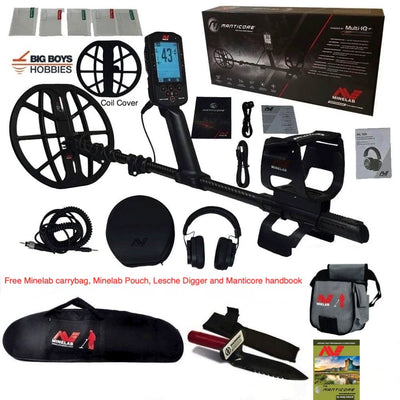
If someone asks us what premium metal detector we recommend most often for serious all-around hunting, our answer is usually the Minelab Manticore.
We say almost always because no detector is perfect for every single person, budget, or site. But if you want top-end performance, excellent depth, strong target separation, accurate Target ID, and one of the best all-around detector platforms on the market today, the Manticore is usually the one we would pick first.
At Big Boys Hobbies, we talk to detectorists every day who want one machine that can handle parks, fields, relic sites, old home places, and beaches without feeling like they are giving something up. That is exactly why the Manticore keeps rising to the top.
Before You Buy a Minelab Manticore, Talk to Bart First
ATTENTION: Don’t buy your Minelab Manticore until you’ve spoken with us first — you’ll be glad you did.
When you contact Big Boys Hobbies, you speak directly with Bart — no call centers, no random order desk, just real detector help from someone who knows the machine.
Call/Text: 405-206-9010 | Email: Bart@BigBoysHobbies.net
Why the Minelab Manticore Stands Out
The Manticore is Minelab’s flagship-level coin and treasure detector, and for good reason. It combines raw power with advanced target information, strong iron handling, and the kind of stability serious hunters want when they are trying to pull keepers out of difficult sites.
On paper, the Manticore already checks a lot of boxes:
- Advanced Multi-IQ+ technology
- 2D Target ID Map
- Fast target separation
- Strong ferrous rejection
- IP68 waterproof design
- Lightweight collapsible carbon fiber shaft
- Upgradeable software
- Preset and custom search modes for different site conditions
But what really matters is how it performs in the field. That is where the Manticore earns its reputation.
It Has the Performance to Match the Hype
A lot of detectors sound great in marketing copy. The Manticore is one of the few that consistently backs it up in real-world hunting.
It has the depth serious detectorists want, but it also has the speed and target separation needed to work through modern trash, old iron, and heavily hunted ground. The 2D Target ID Map gives more visual target information than many machines on the market, and the overall platform has proven to be stable even in tougher EMI environments.
That matters because a detector is not just about raw depth. It is about how much useful information it gives you, how well it handles junk, and how confident you feel deciding whether to dig or move on. The Manticore does a great job on all three.
If you are looking at buying one, you can see the full detector setup here: Minelab Manticore at Big Boys Hobbies.
Why We Run the Manticore With the M9 Coil Almost Exclusively
Here is the real-world part that matters most to us: while the Manticore comes with the stock M11 coil, we run ours with the Minelab Manticore M9 coil almost exclusively.
Why? Because for the kind of hunting we care about most, the M9 is just flat-out better.
The M9 is a 9-inch elliptical Double-D waterproof coil, and in our opinion it is the sweet spot for the Manticore platform. It makes the detector feel lighter, improves maneuverability, and really shines in the kinds of places where good targets are hiding close to iron and modern trash.
That is why we like it so much for trashy parks, older public sites, nail-heavy spots, and worked-out areas where separation matters more than just swinging a bigger coil.
If that sounds like the type of ground you hunt most, take a look at the Minelab Manticore M9 coil here.
Why We Like the M9 More Than the Stock M11 for Everyday Hunting
The stock M11 is a versatile coil, and it is a good one. But if we are heading out to actually hunt the kinds of sites most people spend their time on, the M9 gets the nod almost every time.
That is because the M9 gives us a combination we really value:
- Better handling in trashy ground
- Easier separation around iron and adjacent targets
- A lighter, better-balanced feel during long hunts
- Excellent everyday versatility without feeling oversized
- Very strong performance in the real-world sites we hunt most
If you mainly hunt wide-open clean fields, there may be times when a larger coil makes sense. But for the average serious detectorist hunting old parks, tear-outs, home sites, schools, and mixed-condition ground, the M9 is incredibly hard to beat.
Why the Manticore Is So Hard to Beat in Trashy Ground
One of the biggest reasons we almost always pick the Manticore is how well it performs in difficult, contaminated ground.
Old parks, iron-infested sites, and heavily hunted places can make many detectors feel smeared, uncertain, or slow. The Manticore does a very good job of letting desirable non-ferrous targets stand out better, especially when paired with the M9 coil.
If your goal is to pull keepers from sites that have already been pounded, target separation matters. The Manticore is one of the best detectors out there for exactly that kind of work, and the M9 makes it even more dangerous in the right hands.
It Is Also a Beast on the Beach
The Manticore is not just an inland coin and relic detector. It is also one of the best premium beach machines on the market.
Its waterproof design and strong multi-frequency performance make it a serious option for dry sand, wet salt sand, and shallow water. So if you want one detector that can handle inland sites and beach hunting at a very high level, the Minelab Manticore is one of the best choices available.
It Is Powerful Without Feeling Bulky
Another reason we recommend the Manticore so often is that it offers premium performance without feeling like a heavy, clunky detector. It is lightweight, collapsible, and well thought out for long hunts.
Minelab also packed it with features serious detectorists actually use, including a color display, backlit keypad, vibration, wireless headphone capability, built-in speaker, and upgradeable software.
In other words, it is not just powerful. It is refined.
Why Buy Your Manticore From Big Boys Hobbies?
When you buy from Big Boys Hobbies, you are not dealing with a random drop-ship site or a customer service rep reading from a script. When you call or email us, you talk directly with Bart.
That means real help before the sale and real support after the sale.
- In-stock inventory
- Free shipping
- No sales tax outside Oklahoma
- Free lifetime support
- Direct access to Bart
- Real-world detector experience
- Exclusive bundle options and quality add-ons
If you are spending premium money on a detector, it makes sense to buy from a dealer that will actually help you get premium performance out of it.
Our Favorite Manticore Setup
If you want the setup we personally prefer, start with the Minelab Manticore and add the M9 coil.
That is the combination we almost always reach for when hunting trashy parks, iron-heavy sites, and other real-world locations where separation matters most.
Questions? Call/Text 405-206-9010 or email Bart@BigBoysHobbies.net
Final Thoughts
There are a lot of very good detectors on the market right now. But when people ask us which premium detector we would choose most often for real-world use, the Minelab Manticore keeps coming out on top.
It has the depth, speed, separation, target ID, versatility, and overall performance serious detectorists are looking for. And when you pair it with the M9 coil, we think it becomes an even stronger setup for the kinds of sites most people actually hunt.
That is why we almost always pick the Manticore.
If you have questions about whether the Manticore is the right fit for your hunting style, or whether you should go with the stock setup or add the M9, contact Bart directly before you buy.
Main Detector: Minelab Manticore
Our Favorite Coil Setup: Minelab Manticore M9 Coil
Minelab Manticore FAQ
Why do you almost always recommend the Minelab Manticore?
Because it gives serious detectorists an outstanding combination of depth, separation, Target ID accuracy, iron handling, beach capability, and all-around versatility. It is one of the best premium detectors available for people who want top-end performance in a wide range of conditions.
Do you prefer the Minelab Manticore with the M9 coil?
Yes. For the types of sites we hunt most often, we run the Manticore with the M9 coil almost exclusively. It is a great everyday setup for trashy parks, iron-heavy sites, and places where target separation really matters.
Is the stock M11 coil still good?
Yes. The stock M11 is a very good all-around coil. But for our style of hunting, the M9 is usually the better choice because it feels lighter, works extremely well in trash, and helps unmask good targets in tighter conditions.
Is the Minelab Manticore good for beach hunting?
Yes. The Manticore is one of the best premium beach detectors on the market. It is waterproof and built to handle inland hunting as well as wet salt sand and shallow water conditions.
Is the Minelab Manticore good for trashy parks?
Absolutely. Trashy parks are one of the main reasons we recommend it so often, especially with the M9 coil. The combination of speed, separation, and target information is excellent for difficult public sites.
Why buy the Minelab Manticore from Big Boys Hobbies?
Because you get direct help from Bart, in-stock inventory, free shipping, no sales tax outside Oklahoma, and real support before and after the sale. You are dealing with a real detector dealer, not a random website.
Nokta Legend 2 vs Minelab Manticore in Trash: Small Coil Deep Silver Test
Nokta Legend 2 vs Minelab Manticore in Trash: Small Coil Deep Silver Test
Thinking about the Legend 2 or Manticore? Call, text, or email Bart for expert help and the best deal.
Legend 2: Hint, add Legend 2 to the cart to see current promotions + free shipping + no tax outside Oklahoma.
Manticore: Free shipping + no tax outside Oklahoma with an EXCELLENT Bundle with no junk China items.
If you hunt trashy parks, old home sites, or iron-infested ground, target separation can matter just as much as raw depth. In a recent head-to-head comparison from Calabash Digger Adventures, the Nokta Legend 2 with its 5x8 coil was tested against the Minelab Manticore with an 8-inch coil on deep silver coins surrounded by iron. The results were eye-opening.
While the Manticore remains one of the top flagship detectors on the market, this test suggests the Legend 2 can be extremely competitive in trashy conditions. On several challenged targets, the Legend 2 appeared to deliver cleaner responses and stronger unmasking, showing why it is quickly becoming a favorite for detectorists who want serious performance without spending flagship-level money.
If you have been wondering whether the Legend 2 is truly ready to compete with higher-priced machines, this comparison is exactly the kind of real-world test worth paying attention to.
Why This Test Matters
A lot of detector comparison tests happen in relatively clean ground. Real-world hunting is different. Old coins are often mixed with square nails, modern trash, rusty iron, and all the junk that makes good targets easy to miss.
That is what makes this test useful. Instead of showing performance in easy conditions, it focuses on one of the toughest situations detectorists face: deep silver coins in iron-contaminated ground.
According to the test, these were some of the key buried targets used in the comparison:
- 12-inch deep USA silver half dollar
- 10-inch deep USA silver quarter
- 9-inch deep 1800s USA half dime
- Silver dime buried with a square nail
That last one is where things got especially interesting. In the iron-heavy setup, the Legend 2 appeared to provide a cleaner high-conductor response in M2 mode, while the Manticore needed a mode change to improve the signal.
What the Test Suggests About the Legend 2
The Nokta Legend 2 is not just a lower-priced alternative. In the right conditions, it looks like a detector that can genuinely challenge more expensive machines.
In this comparison, the smaller 5x8 coil helped the Legend 2 work through the iron and isolate deep silver targets with surprising clarity. That matters because smaller coils are often preferred in dense trash, where separation and unmasking become more important than covering ground quickly.
The test also highlights something many detectorists are starting to notice: the Legend 2 has become a much more refined machine with strong target ID behavior, improved trash handling, and the kind of performance that makes it a serious option for coin, relic, and jewelry hunters alike.
Nokta Legend 2 vs Minelab Manticore: Trash Test Comparison
| Feature | Nokta Legend 2 | Minelab Manticore | Takeaway |
|---|---|---|---|
| Performance in Trash | Very strong with the 5x8 coil | Very capable with a small coil setup | Legend 2 appeared to have an edge on some challenging targets |
| Depth on Deep Silver | Strong responses in the test | Strong responses in the test | Both machines showed impressive depth |
| Target Separation | Excellent in iron-heavy conditions | Very good, but it depended more on mode choice | Legend 2 looked especially strong in trash |
| Weight & Comfort | Lightweight and easy to swing | Premium feel, but heavier | Legend 2 may appeal more for long hunts |
| Overall Value | Outstanding value for the money | Flagship performance at a higher price | Legend 2 is the value standout |
Why the Legend 2 Makes So Much Sense for Trashy Sites
If your main goal is finding good targets in difficult ground, the Legend 2 makes a strong case for itself.
- Small coil advantage: Great for working through nails, iron, and tight target spacing
- Strong multi-frequency performance: Helps maintain stability and usable target information in tough sites
- 0–99 Target ID: Gives more target resolution for evaluating signals
- Improved FerroCheck and updated features: Helpful for sorting through junk and iron contamination
- Lightweight and waterproof: Easy to use in a wide range of hunting environments
- Excellent value: Delivers serious performance without flagship pricing
For detectorists who hunt parks, homesites, cellar holes, fields, and even the beach, the Legend 2 looks like one of the most versatile detector choices available right now.
Is the Manticore Still a Great Detector?
Absolutely. The Minelab Manticore is still one of the best high-end detectors on the market. It offers premium technology, excellent depth, and a strong reputation among serious detectorists.
But what this comparison shows is that the Nokta Legend 2 deserves much more respect in the conversation. In trashy conditions where target separation matters most, it can be much more competitive than many people would expect.
For some buyers, that may make the Legend 2 the smarter overall choice.
Why Buy the Nokta Legend 2 from Big Boys Hobbies?
When you order from Big Boys Hobbies, you are not dealing with a faceless call center. You are dealing directly with a real detector dealer who knows the machines and can help you choose the right setup.
- Direct support from Bart Davis
- Authorized detector dealer
- HINT: Add to cart on the Legend 2 for possible promotions.
- Free shipping
- No sales tax outside Oklahoma
- In-stock inventory
- Helpful advice before and after the sale
If you want to compare your options, check out the two machines here:
Frequently Asked Questions
Is the Nokta Legend 2 good in trashy parks and iron-heavy sites?
Yes. The Legend 2 appears to be very strong in trashy conditions, especially when paired with a smaller coil. Its target separation, updated features, and improved target ID behavior make it a strong choice for old parks, home sites, and nail-infested ground.
Can the Nokta Legend 2 compete with the Minelab Manticore?
Yes, especially in certain situations. This test suggests the Legend 2 can be very competitive with the Manticore in trashy ground where separation and unmasking matter. The Manticore is still a premium flagship machine, but the Legend 2 offers impressive performance for the money.
Is the Nokta Legend 2 worth the money?
For many detectorists, yes. The Legend 2 offers multi-frequency performance, a waterproof design, strong target separation, and great versatility at a much lower price than some flagship detectors. That makes it one of the best values in metal detecting right now.
What kind of hunting is the Nokta Legend 2 best for?
The Legend 2 is a versatile detector that works well for coin shooting, relic hunting, jewelry hunting, and beach detecting. Its flexibility is one of the biggest reasons it appeals to so many detectorists.
Should I buy the Nokta Legend 2 or the Minelab Manticore?
That depends on your budget and hunting style. If you want premium top-end features and are comfortable spending more, the Manticore is an excellent choice. If you want outstanding performance, strong separation, and better overall value, the Legend 2 may be the smarter buy for many hunters.
Does Big Boys Hobbies offer a discount on the Nokta Legend 2?
Check in cart pricing! Along with free shipping and no sales tax outside of Oklahoma.
Where can I buy the Nokta Legend 2?
You can buy the Nokta Legend 2 here at Big Boys Hobbies. If you have questions before you order, call or text 405-206-9010 or email bart@bigboyshobbies.net to speak directly with Bart.
Final Thoughts
The Nokta Legend 2 is proving it is far more than just a lower-cost alternative. In tough, trashy conditions with a small coil, it appears capable of competing surprisingly well against one of the biggest names in the premium detector market.
If you want excellent separation, strong real-world performance, and impressive value for the money, the Legend 2 deserves a serious look.
And if deep silver in iron is your kind of hunting, this test gives you another reason to put the Legend 2 near the top of your list.
Need help deciding between the Legend 2 and the Manticore?
Call or text 405-206-9010 or email bart@bigboyshobbies.net. When you contact Big Boys Hobbies, you talk directly with Bart every time.
XP Deus II Stereo Audio Explained: How the 2-Channel System Works with the HF2 Coil
XP Deus II Stereo Audio Explained: How the 2-Channel System Works with the HF2 Coil
If you've been following the newest updates for the XP Deus II, you've probably heard about the new stereo audio system and dual detection channels. This technology fundamentally changes how targets are interpreted in the field and is one of the biggest audio innovations in metal detecting in years.
If you're looking at the full setup, you can see the detector package here:
XP Deus II Gold Detector with the 9.5″ HF2 coil and WSA ST stereo headphones
This configuration unlocks the newest stereo processing features introduced in the latest XP firmware update and delivers one of the most advanced detecting setups available today.
Instead of hearing a single mono audio channel like traditional detectors, the Deus II can process two independent detection channels simultaneously. Each channel behaves differently and sends its audio response to separate stereo channels in your headphones, allowing your brain to interpret far more information about the target.
What Is the XP Deus II 2-Channel Stereo System?
The newest XP firmware introduced something called Stereo Multi-Processing. This allows the detector to run two detection channels at the same time and distribute the audio into the left and right sides of stereo headphones.
In simple terms, the detector is almost acting like two detectors running simultaneously with different behaviors.
Each channel can operate with its own:
- Reactivity speed
- Signal processing
- Audio response
- Target interpretation
The result is a much more detailed audio picture of what the coil is seeing underground.
How the Two Detection Channels Work
Channel 1 – Fast Target Separation
The first channel typically runs with faster processing speeds. This allows it to excel at:
- Separating targets in heavy trash
- Identifying shallow targets
- Recovering quickly between multiple targets
This is especially important in places like:
- Old home sites
- Modern parks
- Iron-infested relic sites
In fact, many experienced hunters consider the XP Deus II to currently be the best iron and trash separation detector on the market. Its recovery speed and audio response allow it to pick good targets out of dense iron better than most machines available today. I am personally blown away on how good it is. It's like a knife through butter.
Channel 2 – Deep Target Detection
The second channel can be configured with slower processing speeds to help capture deeper signals and weaker targets.
This channel focuses more on:
- Deep targets
- Faint signals
- Smoother audio responses
Normally, detectorists must choose between depth or separation when adjusting settings. With the stereo system on the XP Deus II HF2 Gold Detector Package, you can hear both simultaneously.
Outstanding Performance in EMI (Electromagnetic Interference)
Another area where the Deus II stands out is its ability to handle EMI — electromagnetic interference. In many areas, power lines, buildings, and electronic devices can create interference that makes detectors unstable.
The XP Deus II platform is widely regarded as one of the most stable detectors available when dealing with EMI. The advanced processing and frequency handling allow it to run smoother and quieter in areas where many detectors struggle. I found it handles it better than any machine I've ever used.
This stability allows detectorists to maintain higher sensitivity settings and hear weaker targets that other machines may miss.
Why Stereo Audio Is a Huge Advantage
Traditional detectors use mono audio, meaning every signal sounds like it comes from the same place.
The stereo system separates the two detection channels into left and right audio, creating several advantages:
- Better target separation
- Improved target positioning
- More natural audio interpretation
- Reduced listening fatigue during long hunts
XP also introduced a feature called Audio Morphing. As the coil passes over a target, the sound can blend between the two channels, helping the user judge:
- Target depth
- Signal strength
- Target size
Why the 9.5″ HF2 Coil Is Perfect for This System
The 9.5″ HF2 elliptical coil is extremely sensitive to small and low-conductive targets.
This makes it ideal for:
- Small gold
- Thin jewelry
- Micro relics
- Low conductive targets
- Deep Civil War Relics
When paired with stereo audio processing, the detector can interpret subtle signals with much more clarity.
The fast channel isolates targets in trash while the slower channel captures faint signals that might otherwise be missed.
You can see the full detector setup here:
XP Deus II with the HF2 coil and WSA ST stereo headphones
Key Benefits of the XP Deus II Stereo System
1. Best Target Separation in Iron (Best on the market)
The fast channel isolates good targets in dense trash and iron better than most detectors available.
2. Better Depth
The slower channel captures deep targets that faster detectors may miss.
3. Improved EMI Stability (Best on the market)
The Deus II platform remains stable in electromagnetic interference environments where many detectors struggle.
4. More Target Information (Best on the market)
Stereo audio provides more signal information to the user.
5. More Natural Audio (Best on the market)
The stereo sound field reduces fatigue and makes target interpretation easier during long hunts.
Buying the XP Deus II HF2 Stereo Package
If you're interested in this setup, you can view the detector package here:
XP Deus II Gold Detector with the 9.5″ HF2 coil and WSA ST stereo headphones
- Free shipping
- No tax outside Oklahoma
- Personal support from the owner
Big Boys Hobbies also offers pricing options for customers who prefer the detector without the free MI-6 pinpointer. Contact us to ask about the best available deals.
Who Should Consider the XP Deus II HF2 Stereo Setup?
The XP Deus II with the 9.5″ HF2 coil and stereo headphones is one of the most advanced detecting setups currently available. While it can be used by beginners, it really shines in the hands of detectorists who want maximum performance and control.
This setup is especially popular with:
- Relic hunters working iron-infested sites
- Gold hunters searching for small or low-conductive targets
- Experienced detectorists who want maximum target information
- Hunters dealing with heavy EMI environments such as urban areas
Thanks to its excellent iron separation, EMI stability, and stereo audio processing, many detectorists consider the XP Deus II to be one of the most capable machines available for difficult sites.
If you're interested in the full setup, you can see it here:
XP Deus II Gold Detector with the 9.5″ HF2 coil and WSA ST stereo headphones
Big Boys Hobbies also offers pricing options for customers who prefer the detector without the free MI-6 pinpointer. Contact us to inquire about the best deals available.
Why Buy from Big Boys Hobbies?
Big Boys Hobbies is a real brick-and-mortar metal detector store based in Norman, Oklahoma.
When customers call or email, they speak directly with Bart Davis — the owner. That means real advice from someone who understands these machines and helps detectorists choose the right setup every day.
- Free shipping
- No tax outside Oklahoma
- In-stock inventory
- Direct support from the owner
— Bart Davis
Owner, Big Boys Hobbies
Nokta Legend 2 Beach VID Numbers & Target ID Chart for Common Finds
Nokta Legend 2 Beach VID Numbers & Target ID Chart for Common Finds
By Bart Davis – Owner, Big Boys Hobbies Metal Detectors
If you are trying to learn the Nokta Legend 2 VID numbers for common beach finds, this guide will help you understand what targets often read on the screen and what numbers are worth digging. Whether you hunt dry sand, wet sand, or the saltwater line, knowing the usual Nokta Legend 2 target ID ranges can help you recover more coins, jewelry, and better targets with less guesswork.
The Nokta Legend 2 is one of the best all-around beach metal detectors for the money because it offers strong multi-frequency performance, great target separation, waterproof construction, and impressive value. If you are shopping for one, you can see our current Nokta Legend 2 here.
Why buy from Big Boys Hobbies?
When you shop with Big Boys Hobbies, you are dealing directly with the owner, Bart Davis. We are a real brick-and-mortar detector dealer with in-stock inventory, hands-on support, free shipping, and no sales tax outside Oklahoma. On the Nokta Legend 2 product page, customers also get an automatic discount in cart that we cannot publicly advertise on the page.
What Do Nokta Legend 2 VID Numbers Mean?
The VID number (also called target ID) on the Nokta Legend 2 helps identify what type of target may be under your coil. Lower numbers often point to foil, very small, low-conductive targets, or certain junk items. Mid-range numbers can include nickels, pull tabs, some gold rings, and other common beach finds. Higher numbers often include coins, larger silver targets, and other high-conductive items.
On the beach, these numbers can shift depending on target size, target shape, depth, corrosion, mineralization, and whether you are hunting in dry sand or wet salt sand. That means the best way to use a Nokta Legend 2 VDI chart is as a real-world guide, not an exact promise of what is in the ground.
Nokta Legend 2 Beach VID Chart for Common Finds
Below is a practical Nokta Legend 2 beach target ID chart based on common beach targets. Keep in mind that target IDs can vary depending on size, alloy, orientation, and conditions, so these are typical readings rather than guarantees.
| Target | Typical VID | What to Know |
|---|---|---|
| Quarter | 87–88 | Very strong high-tone coin signal |
| Dime | 83–84 | Usually a tight, repeatable signal |
| Nickel | 45–46 | A very common beach coin range |
| Penny | 83–84 | Often reads very close to a dime |
| Stainless Steel Ring | 27 | Low-conductive junk ring range |
| Pandora-style Ring | 52–53 | Can land in a mid-range jewelry zone |
| Silver Ring (Large) | 94–96 | Large conductive silver target |
| Silver Ring (Small) | 84–85 | Can read near coin numbers |
| Gold Ring (Small) | 25 | Often overlaps foil and low-conductive trash |
| Gold Ring (Large) | 62–63 | Larger gold can read higher than many expect |
| Silver Chain | 50+ | Chains can be inconsistent depending on size and shape |
| Pull Tab | 46–47 | Classic beach trash target that can overlap with good finds |
| Bottle Cap (Corona) | Jumps / Scratchy | Often unstable and rough-sounding |
| Bottle Cap (Other) | Jumps / Scratchy | Broken tone on many sweeps |
| Foil | 21 | Common small beach trash |
| Zipper | 66–68 | A common clothing-related beach find |
Best Gold Range on the Nokta Legend 2 for Beach Hunting
If your goal is finding more jewelry, one of the biggest lessons from beach hunting is that good targets do not always land where people expect. Small gold can come in surprisingly low, while larger gold rings can read much higher than many detectorists think.
On the Nokta Legend 2, gold rings can vary widely — from around 25 on smaller gold to the low 60s on larger gold rings.
That is why successful beach hunters using the Nokta Legend 2 do not rely on one “magic gold number.” Instead, they pay attention to repeatability, tone quality, and how stable the target sounds from multiple directions.
Quick Nokta Legend 2 Beach Dig Guide
| VID Range | What It Often Means | Dig Recommendation |
|---|---|---|
| Around 21–27 | Foil, small junk jewelry, small gold possibilities | Worth digging when jewelry is the goal |
| 45–47 | Nickels and pull tabs | Strong beach dig zone |
| 50–53 | Chains, some jewelry, Pandora-style ring range | Good numbers to investigate |
| 62–68 | Large gold ring, zipper, and other mid-to-high conductors | Check these carefully on the beach |
| 83–88 | Pennies, dimes, and quarters | Very productive coin range |
| 94–96 | Large silver ring or other very high conductor | Definitely worth checking |
Tips for Using This Nokta Legend 2 Beach Target ID Chart
- Use it as a guide, not a guarantee. Beach conditions can change target IDs.
- Repeatable signals matter. A smooth signal from multiple directions is often worth digging.
- Gold does not live in only one number range. Small gold and large gold can read very differently.
- Scratchy bottle caps often give themselves away. If the signal jumps and sounds rough, it may be a cap rather than a clean target.
- Wet salt sand changes things. Mineralization and conditions can make IDs less exact.
Is the Nokta Legend 2 Good for Beach Hunting?
Yes — the Nokta Legend 2 is a strong option for beach hunters who want modern multi-frequency performance without stepping into a much higher price category. It is waterproof, versatile, and well-suited for dry sand, wet sand, and shallow water use. For many detectorists, it is one of the best all-around values on the market today.
If you are ready to check out the detector itself, visit our Nokta Legend 2 product page to see current availability.
Shop the Nokta Legend 2 at Big Boys Hobbies
We keep the Nokta Legend 2 in stock, offer free shipping, no sales tax outside Oklahoma, and direct support from the owner. If you have questions before buying, call or email and you will speak directly with Bart Davis.
Frequently Asked Questions About Nokta Legend 2 VID Numbers
What VID numbers are gold rings on the Nokta Legend 2?
Gold rings on the Nokta Legend 2 can vary a lot. In this beach chart, a small gold ring reads around 25, while a larger gold ring can read around 62–63.
What does a nickel read on the Nokta Legend 2?
A nickel often falls around 45–46 on this beach target chart.
What does a quarter read on the Nokta Legend 2?
A quarter often reads around 87–88 on this chart.
What does foil read on the Nokta Legend 2?
Foil is shown at around 21, which is why very small gold can be easy to miss if you skip lower conductive targets.
How do bottle caps act on the Nokta Legend 2?
According to this beach chart, bottle caps often act jumpy and scratchy rather than locking onto a clean, stable number.
Where can I buy the Nokta Legend 2?
You can buy it here from Big Boys Hobbies: Nokta Legend 2 Metal Detector.
Final Thoughts: If you want to recover more jewelry and coins with the Nokta Legend 2, learning the common beach VID numbers is a smart start. Just remember that great finds do not always show up in only one perfect range. The more you understand real-world target behavior, the better your results will be.
Nokta Legend 2 Tips & Settings: Get More Depth and Better Targets
Nokta Legend 2 Tips & Settings: Get More Depth, Better Stability, and More Good Targets
By Bart Davis – Owner, Big Boys Hobbies Metal Detectors
The Nokta Legend 2 is one of the best all-around detectors for the money — and with a few smart setup tweaks, you can get a quieter machine, more accurate target ID, and better performance in trash, mineralized ground, and even wet salt conditions.

This guide is built from real-world setup habits and field-proven tricks — the kind of stuff that helps you get more out of the Legend 2 right away, whether you hunt parks, yards, relic sites, fields, freshwater, or saltwater beaches.
Quick Jump (Tips & Tricks)
- Noise Cancel first
- Ground balance (don’t skip this)
- Sensitivity: stable beats “maxed out”
- Pick the right mode for your site
- Save user profiles (dry vs wet, park vs relic)
- Dual Audio: speaker + headphones together
- Coil control: low + slow
- Recovery speed & separation
- Trash/iron strategy
- Common mistakes to avoid
- Why buy your Legend 2 from BBH
Tip #1 – Run Noise Cancel Before You Start
If the machine feels chatty or inconsistent, start with Noise Cancel. This helps the Legend 2 find a quieter channel and smooths out interference from nearby electronics, power lines, or other detectors.
Field habit: Noise cancel at the start of every hunt — and again if you move to a new area (parking lot to grass, dry sand to wet, etc.).
Tip #2 – Ground Balance (Especially If the Ground Changes)
A fast ground balance can make the Legend 2 run noticeably calmer and help target ID behave more consistently. This matters in mineralized soil, red dirt, wet ground, or transition areas.
- Quick win: If you’re getting random pops/chirps, ground balance and re-check.
- Pro habit: Re-ground-balance when you change locations or conditions.
Tip #3 – Sensitivity: Stable Beats “Maxed Out”
More sensitivity isn’t always better — especially in trash, EMI, or wet salt. The goal is a stable detector that gives repeatable hits you can trust.
- Start high, then step down until it runs smoothly.
- If you can’t get repeatable signals, lower the sensitivity and re-check the target.
- A stable machine will often find more keepers because you’re not fighting noise.
-
Starting ranges like "20–25 in cleaner ground, drop to 18–22 in wet salt or EMI-heavy areas" (common in beach/wet tutorials).
Tip #4 – Use the Right Mode for the Site
Modes exist for a reason. Pick the one that fits the ground and target types:
- Park – Great for coins/jewelry in modern trash
- Field – Great for relic/older sites and mixed targets
-
Beach – Best stability in wet salt sand / surf conditions
: Note Beach mode defaults to Multi Wet (MW) for stability in surf/wet sand—ties into your beach focus.
Simple rule: If wet salt is making the detector unstable, switch to Beach mode and tune from there.
Tip #5 – Save User Profiles (This Is a Huge Time Saver)
Once you get the Legend 2 dialed in, save it. This prevents losing great settings and makes it easy to swap setups instantly.
- Example: Save one profile for “Park/Trashy”, one for “Relic Site”, one for “Wet Salt”.
- Bonus: If you travel, you can build a profile specifically for that region’s soil.
Tip #6 – Dual Audio Trick: Speaker + Headphones at the Same Time
One of the most underrated Legend 2 tricks is setting it up so you can hear audio through the built-in speaker and your headphones at the same time.
- Why it’s useful: teaching a buddy, letting a partner hear targets, or capturing better sound while filming hunts.
- Where to look: Bluetooth/audio routing options inside the system menu (set the output to allow both). Go to Settings (Gear icon) > Bluetooth > Press the (+) button to change the "1" to a "2".
Tip #7 – Coil Control: Keep It Low and Swing Slow
The Legend 2 hits best when the coil stays close to the ground, and the sweep speed is controlled. Fast swings and “air gaps” miss targets and make IDs jump around.
- Keep the coil low and level.
- Slow down over suspected targets and “cross-sweep” from multiple angles.
Tip #8 – Recovery Speed: Use It to Separate Good Targets
In trashy ground, recovery speed can be the difference between “all noise” and pulling a keeper out of junk.
- More trash: slightly faster recovery to unmask targets.
- Cleaner ground/chasing depth: slightly slower recovery can help.
-
Start at 4–6: for balanced depth/separation; go higher (7–9) in heavy trash for unmasking, lower (3–5) for max depth in open sites."
If you tell me what you mainly hunt (parks, relics, beaches), I can suggest a great starting range.
Tip #9 – Trash & Iron Strategy: Don’t Let the Site Win
In iron and heavy trash, your goal is repeatable signals. Use tighter sweeps, work slower, and trust the “repeatability test”: if it hits from multiple angles, it’s usually worth checking.
- Shorten your sweep length in dense trash.
- Cross-sweep targets to confirm.
- Don’t be afraid to dig a few “iffy” signals early — it teaches you the machine fast.
Common Mistakes to Avoid
- Cranking sensitivity to the top and fighting chatter all day.
- Skipping noise cancel / ground balance (then blaming the detector).
- Not saving a great setup to a user profile.
- Swinging too fast and too high off the ground.
- Ignoring repeatability — the best targets often sound “clean” even when deep.
Related Nokta Pages at Big Boys Hobbies
Why Buy the Nokta Legend 2 from Big Boys Hobbies
Big Boys Hobbies is a real brick-and-mortar metal detector shop with inventory on hand — not a drop-ship operation. And when you call or email, you talk directly with the owner.
- In-stock inventory and fast shipping
- Free shipping (on qualifying orders)
- No sales tax outside Oklahoma
- Personal support from Bart (before and after the sale)
- Legend 2 buyers: add to cart to see any instant savings/promos available
Happy hunting!
— Bart
RnB Power-X Battery Now Works With Nokta Legend 2
RnB Power-X Battery Now Works With the Nokta Legend 2 (Plus Minelab Manticore & Equinox)
By Bart Davis – Owner, Big Boys Hobbies Metal Detectors
One of the most common questions we get from serious detectorists is simple: “How do I get more run time without worrying about my detector dying mid-hunt?”
If you run a Minelab Manticore or Minelab Equinox, chances are you’ve already heard of — or used — the RnB Power-X USB Power Pack. It’s been one of the most reliable external battery solutions out there for years.
Now we’re happy to officially announce that the new version of the RnB Power-X also works with the Nokta Legend 2. If you want to see the Legend 2 we keep in stock, here’s the direct link: Nokta Legend 2 Metal Detector.
Why This Matters for Nokta Legend 2 Users
The Nokta Legend 2 is a true workhorse. It’s the kind of detector people take out for long, serious hunts — farm fields, parks, relic sites, and beach trips where you don’t want to pack up early because your battery is done.
The RnB Power-X solves that by giving you:
- Extended detecting time (often effectively doubling your runtime)
- More peace of mind on long hunts and rally weekends
- Less wear on your detector’s internal battery over time
One Battery Pack That Covers Multiple Machines
What makes the Power-X especially useful is that it isn’t a one-detector accessory. The updated version works across a wide range of popular machines, including:
- Minelab: Manticore, Equinox 900 / 800 / 700 / 600
- Minelab X-Terra: X-Terra Elite, X-Terra Pro
- Nokta: Legend 2, Legend, Simplex (using included adaptors)
If you run more than one detector — or you plan to upgrade later — this is one accessory that can carry over with you.
What’s New in the “New Version” Power-X
This isn’t the original Power-X from years back. The new version includes:
- Improved locking clamp system for more secure mounting
- Better stability to reduce sliding or twisting
- Rubber adaptors to fit different stem shapes (including Nokta’s trapezoid stem)
- USB-C input for modern charging convenience
On round-stem detectors like many Minelabs, the fit is extremely solid. On Nokta trapezoid stems (Legend series), the included adaptors give a secure fit for normal detecting use.
How It Powers Your Detector
When connected, compatible detectors draw from the Power-X first before relying on the internal battery. That means longer sessions and less stress on your built-in battery.
It also doubles as a standard USB power bank for phones, wireless headphones, pinpointers, and other gear in the field.
Need Help Picking the Right Setup?
If you’re not sure whether this is the right accessory for your detector, stem style, or hunting style, reach out before you buy. When you contact Big Boys Hobbies, you’re talking directly to me — no call centers and no scripts.
If you want to purchase the RNB Power-X for your Legend 2 or Minelab machine, click here.
And if you’re running the Legend 2 (or considering it), you can check it out here: Nokta Legend 2 Metal Detector.
Happy hunting,
Bart Davis
The Nokta Legend 2 is Here: Why This Next-Generation Detector is a Game Changer!
The Nokta Legend 2 is Here: Why This Next-Generation Detector is a Game Changer!
If you caught the recent YouTube video breaking down the brand new Nokta Legend 2, you already know the metal detecting world is buzzing right now. We’ve been getting flooded with calls and emails here at Big Boys Hobbies from detectorists eager to know more. Let's dive into the massive upgrades Nokta has brought to the table and why the Legend 2 is the simultaneous multi-frequency machine you need to be swinging this season.
As your trusted source for all things detecting, we're here to break down exactly what makes the Legend 2 an absolute powerhouse—and why you should get yours directly from us.
What's New with the Nokta Legend 2?
Nokta didn't just tweak their flagship detector; they gave it a serious overhaul aimed at performance, comfort, and precision. Whether you are hunting parks, farm fields, salt beaches, or iron-infested relic sites, this detector is built to adapt.
Here is what the video highlighted that has us so excited:
- Expanded 0–99 Target ID Scale & New Relic Mode: Say goodbye to digging unnecessary junk. The expanded target ID resolution gives you far more granular, precise information about what’s under the coil. Coupled with the brand new Relic Mode built specifically for tougher, trash-heavy sites, picking out the good targets hiding in the iron has never been easier.
- Lighter Weight & Enhanced Ergonomics: Nokta managed to shave off about 0.4 lbs from the original. Paired with a sleek carbon fiber shaft and new membrane keys that are effortless to operate (even with gloves on), those all-day hunts will be much easier on your arm.
- Massive 6700 mAh Battery Life: There’s nothing worse than your detector dying right when you hit a hot patch. The Legend 2 features an upgraded 6700 mAh Lithium-Ion battery and a handy charge LED so you can spend more time swinging and less time tethered to a wall.
- The New LD Coil Ecosystem: Out with the old, in with the new. The Legend 2 introduces the brilliant new LD coil series, including the versatile LD28 (11" DD) and the sniper-friendly LD21 (8" x 5.5" DD) included right in the box.
- Wireless Firmware Updates: Say goodbye to hunting for cables just to keep your machine updated. The Legend 2 is fully equipped for wireless updates, keeping your machine future-proofed with maximum convenience.
Why Buy Your Legend 2 From Big Boys Hobbies?
You saw the video, you know the machine is incredible, but where you buy it matters. When you order from Big Boys Hobbies, you're not dealing with a faceless corporation or a massive call center—you are dealing directly with me, Bart. I use these machines, I know them inside and out, and I am always here to help you get your detector dialed in.
The Big Boys Hobbies Advantage:
- FREE Nokta Detector Carry Bag: While supplies last, we are tossing in a free Nokta carry bag with your Legend 2 purchase!
- Free Shipping & No Sales Tax: We offer fast, free shipping, and you pay absolutely NO sales tax if you are outside of Oklahoma.
- Lifetime Support: Have a question about a setting in the field? Call me. You get lifetime support when you buy from us.
- Authorized Dealer: Full 3-Year Nokta Factory Warranty applies.
Ready to Upgrade?
The Nokta Legend 2 is raising the bar and units are flying off the shelves. If you want the sharpest, most feature-rich simultaneous multi-frequency experience on the market today, this is it.
👉 Click here to secure your Nokta Legend 2 today for just $999!
Got questions before you pull the trigger? Call or text me directly at 405-206-9010 or shoot an email to bart@bigboyshobbies.net. Let's get you set up for your best season yet!